
Last Updated on August 8, 2026 by Alan
Nowadays, almost anything you attach to your computer is connected via a USB port. And next to printers, the items most frequently connected via a USB port are external drives – typically external hard drives (HDDs), external solid state drives (SSDs), or flash drives (sometimes called memory sticks or USB sticks). The “plug and play” convenience of USB devices is great, but there is a danger if you’re not careful when you disconnect a USB drive from your computer. Read on to learn how to avoid trouble.
The Problem
In many cases, when you save a file to a drive it may appear that the save has completed right away, when in fact (for technical reasons that are beyond the scope of this article) it may take some additional time before the file is fully written to the drive. So if you physically disconnect the drive from its USB port when the save appears to be finished but is still in progress, several undesirable consequences may result – you may lose data, the entire file may become damaged and unusable, and it’s even possible (though much less likely) that the drive itself may be damaged. You can avoid all of these issues by consistently using one of the following procedures when you disconnect a USB drive – each of these procedures will ensure that all data has been fully written before the drive is disconnected.
Safe Removal Using the Windows Taskbar
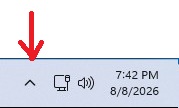
On the right side of the Windows taskbar at the bottom of the screen, click the little USB stick icon (if you don’t see it, you may need to first click the little upward pointing angle bracket, which will display a panel of additional icons).
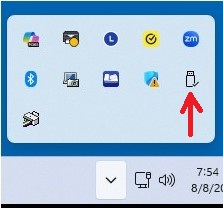
Wait for a little menu to pop up, and when it does click the choice to “Eject” whichever drive you want to remove (there may be several shown).
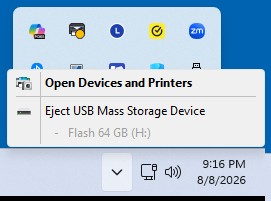
The system will first ensure that all pending writes to that drive are completed, and then display a message similar to this:
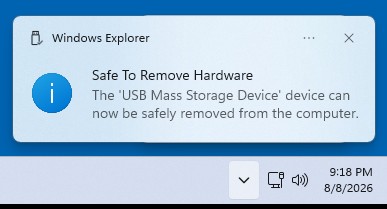
When you see that message you can safely disconnect the drive.
Safe Removal Using File Explorer
Open a File Explorer Window (you can do this by clicking the yellow file folder icon on the taskbar, or double-clicking the This PC icon on the desktop), navigate to the USB drive you want to disconnect, right-click the drive, and click Eject from the menu that pops up.
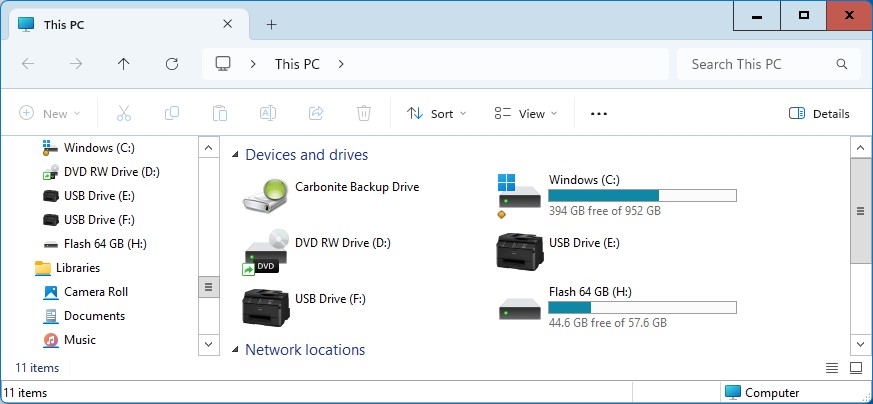
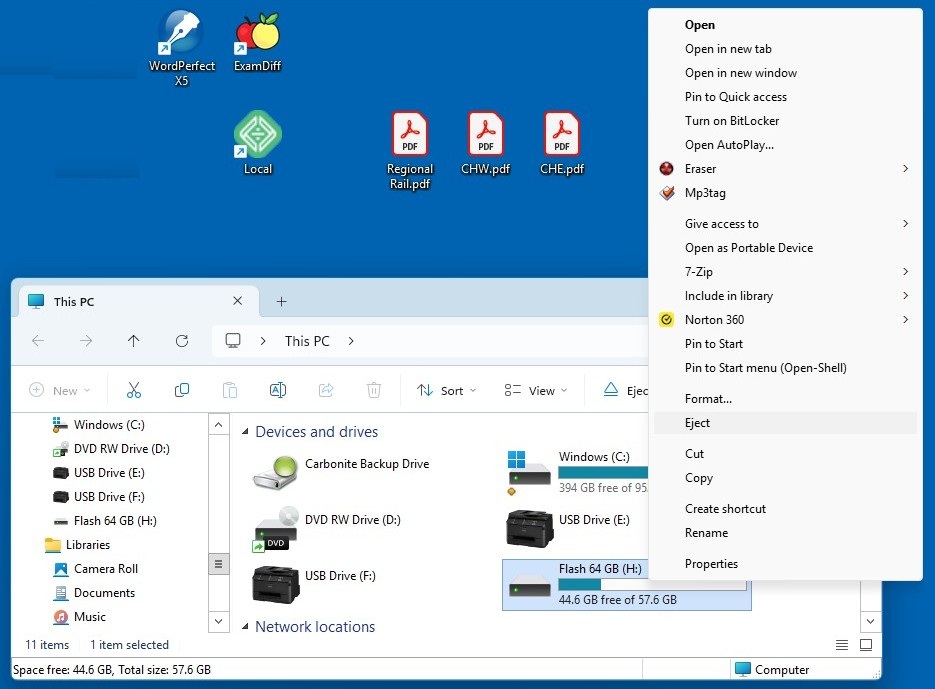
As before, the system will first ensure that all pending writes to that drive are completed, and then display a message similar to this:
When you see that message you can safely disconnect the drive.
Safe Removal When All Else Fails
If neither of the above procedures works, for whatever reason, there’s another method that will always work. Simply shut the computer all the way down (choose Shut Down from the Start menu, NOT Restart or Sleep or anything else). Doing that completes any pending file writes before the machine shuts down. Once the computer is completely off (all lights are out and there is no fan or disk drive noise), you can safely disconnect any USB drive or other external device.
If the machine is frozen or can’t be shut down in the usual way, see What To Do When Your Computer Freezes for instructions on how to proceed.